How to design your array?
Nov 9, 2025
1
list all your devices you need to power with the array.
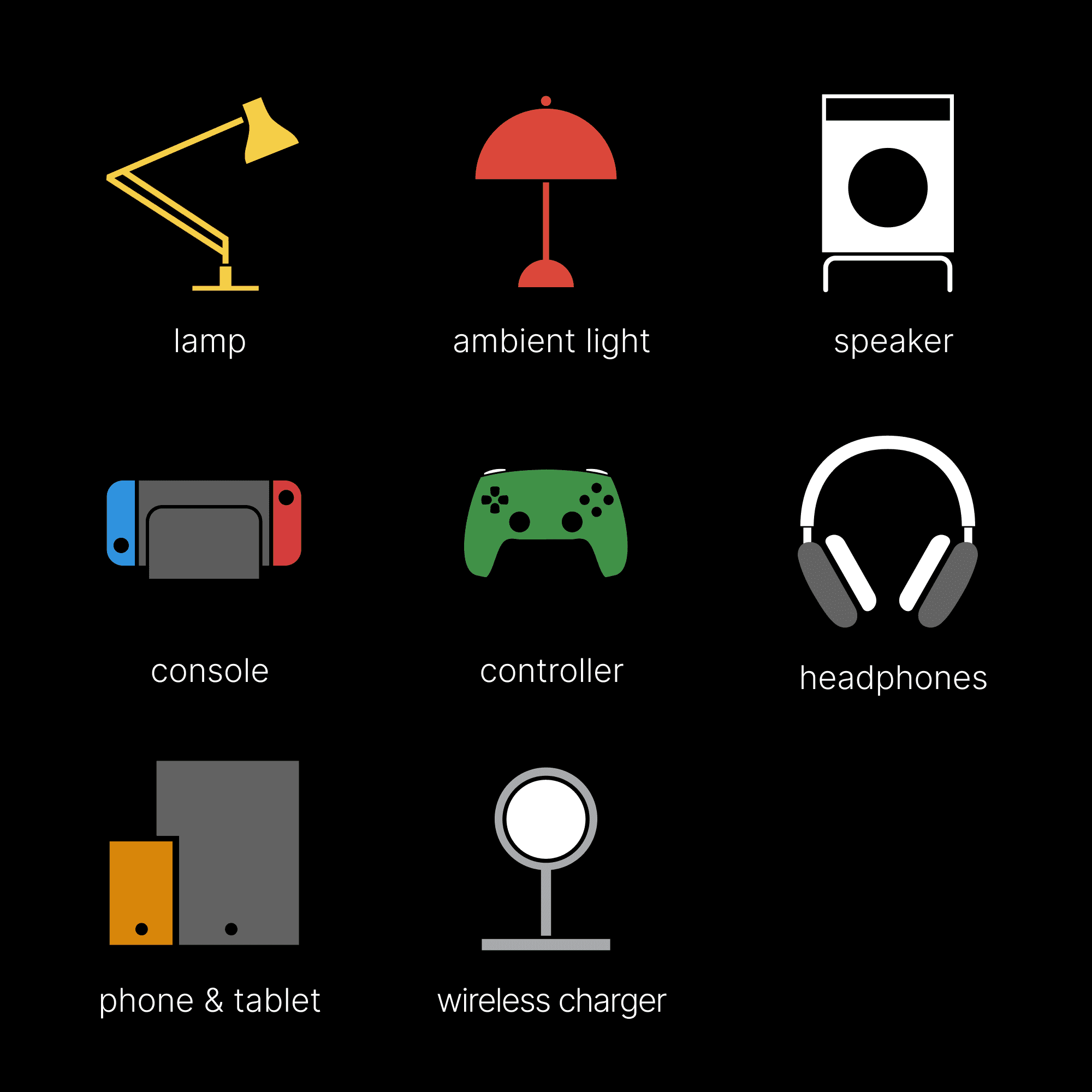
Before choosing your setup, take a quick look at all your devices you need to power on your desktop, and decide which ones you want to charge with the array.
For high-power devices like desktop PC, we recommend plugging them directly into the wall socket instead of the array.
2
separate them into 2 types: always-on & battery-powered.
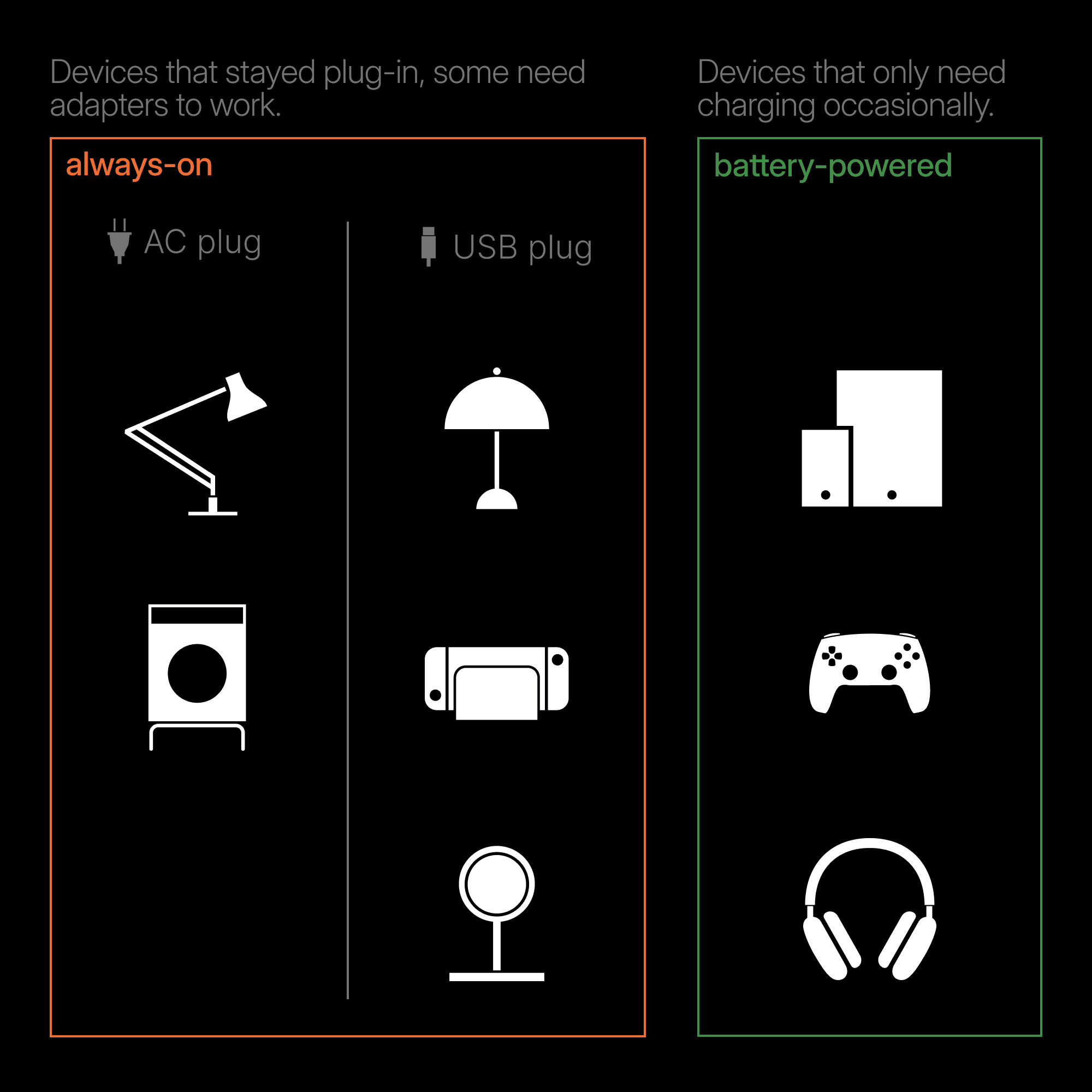
Separate those devices into two types:
always-on devices: devices that stay plug-in, either with AC plugs or USB cables.
Battery-powered devices: devices powered by their own batteries and only need charging occasionally.
3
choose the modules that match the power needs.
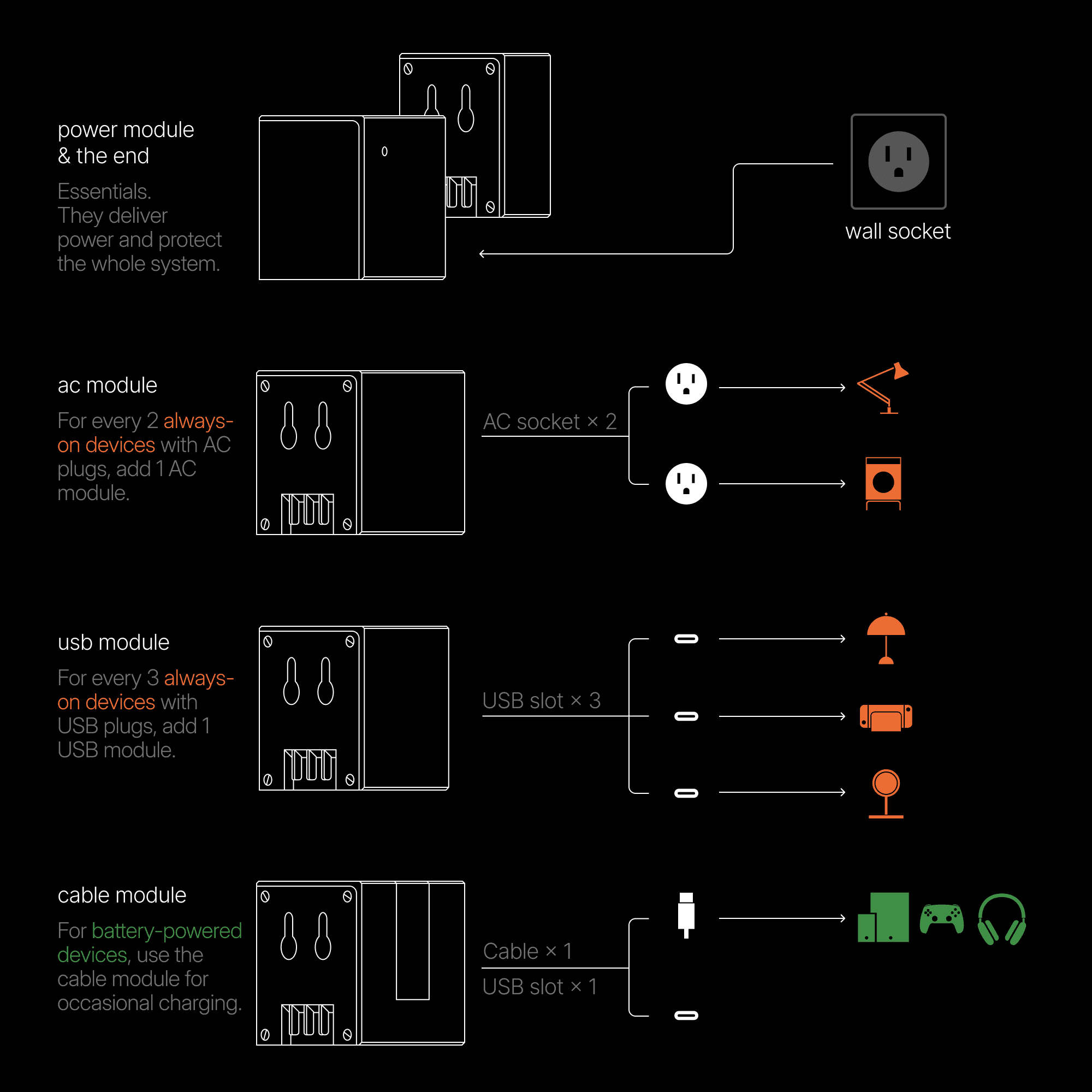
The power module and the end module come as a pair. You need the power module to connect the array to your wall socket.
Connect always-on AC devices like printers, stereo speakers, and lamps to the AC module. Each AC module powers up to 2 devices.
Connect always-on USB-C devices like ambient lights and wireless chargers to the USB module. Each module powers up to 3 devices.
For devices that only need occasional charging, use the retractable cable on the cable module. The cable module also includes an extra USB-C port for always-on devices. If you have many devices that often charge at the same time, you may need an additional cable module.
4
arrange the modules the way you like.
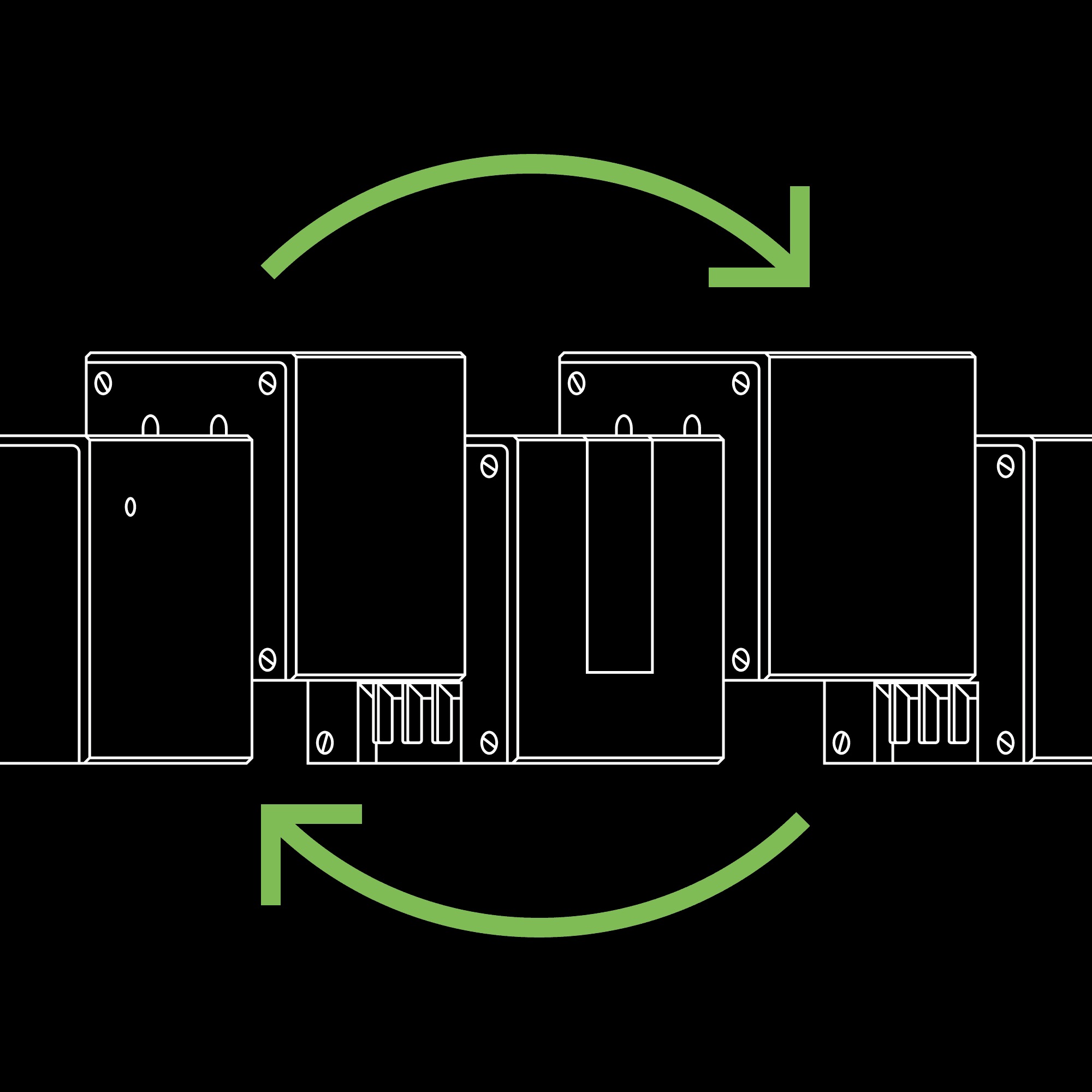
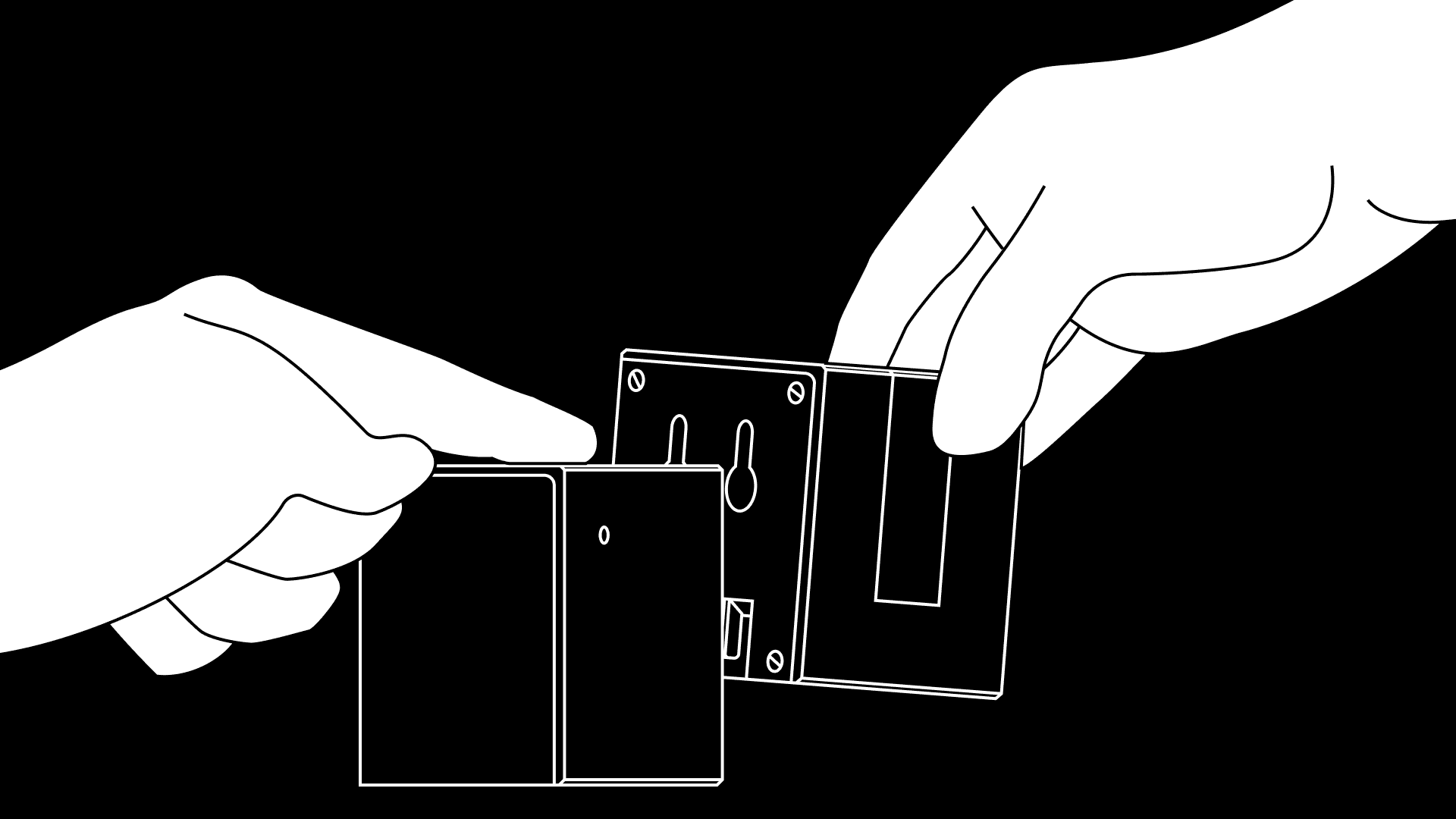
The power module and the end may come pre-assembled out of the box. Simply separate them, place your modules in between, and arrange the order that best fits your desk and your workflow.
5
assemble all modules & connect all cables.
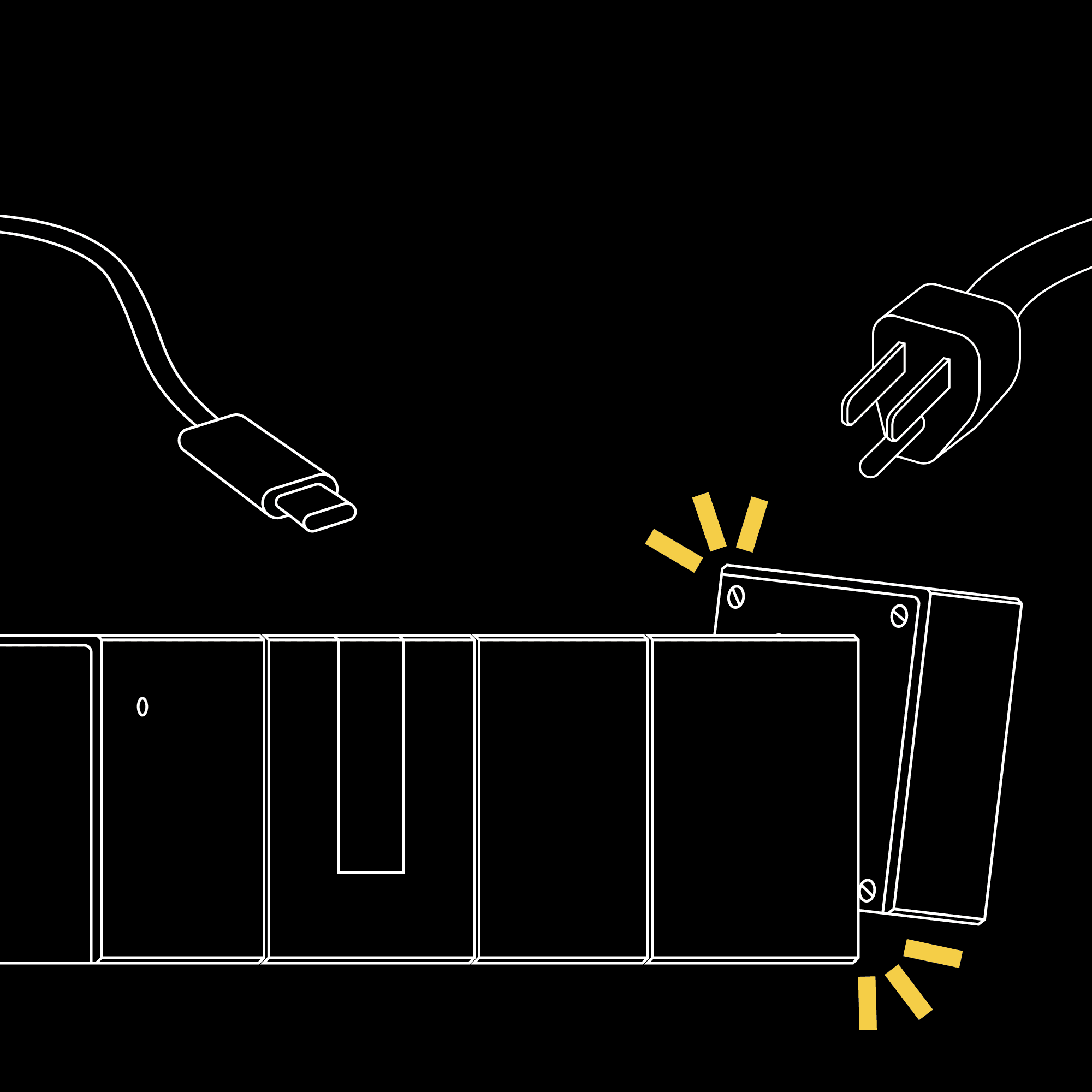
Then, assemble all modules, connect all cables and devices to the ports.
For assembling, please refer to our article How to assemble the array?.
Please do not connect the power module to the wall socket before assembled.
Also, please ensure that the switch on the power module is in “down” position to ensure that the power is securely cut off for the array.
6
decorate your array with magnets & accessories.
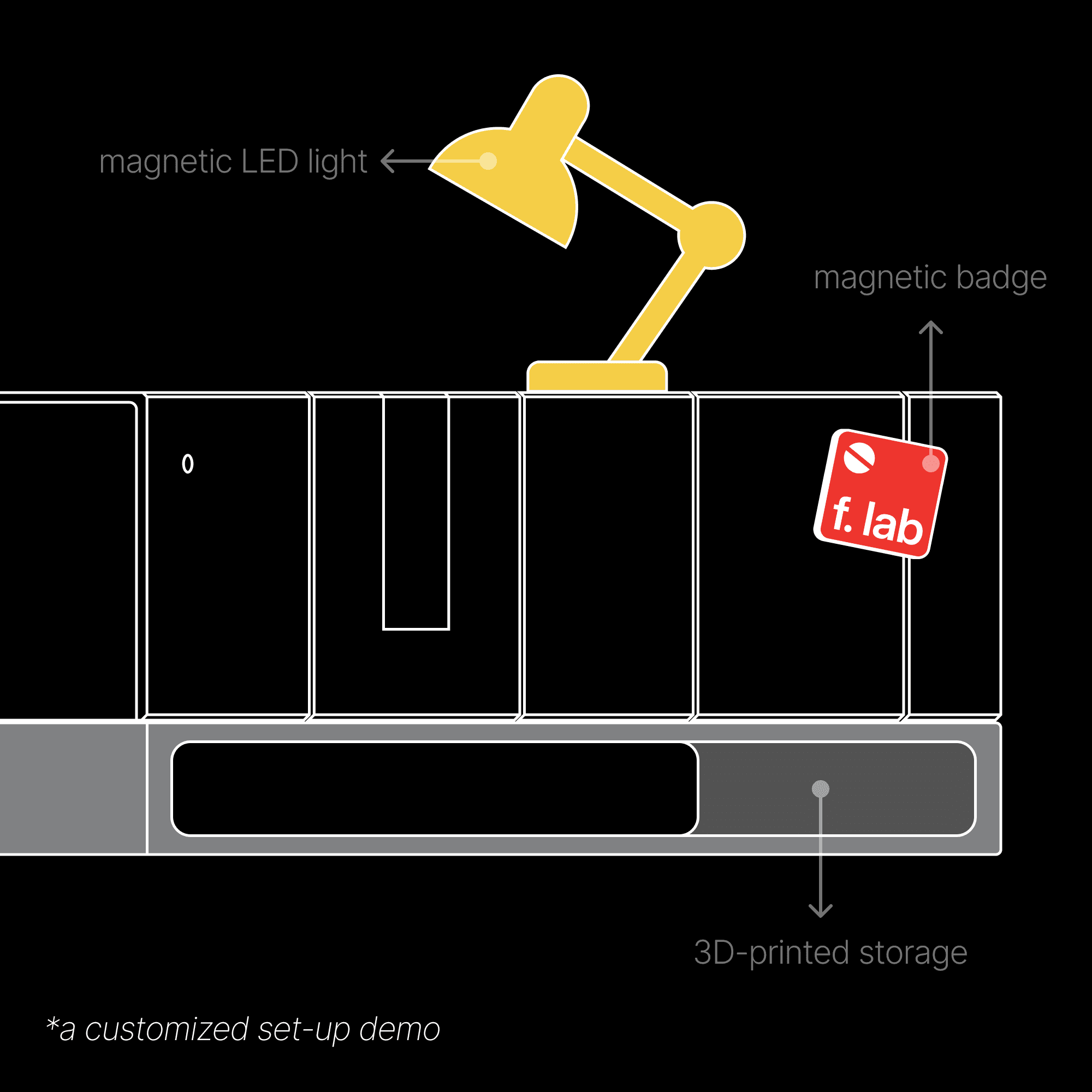
After the assembling is complete, you may apply your own decorations like magnets on the magnet-friendly surface and your own 3D printed accessories on the threaded mounts.
7
power on the array & enjoy the clean desk space.
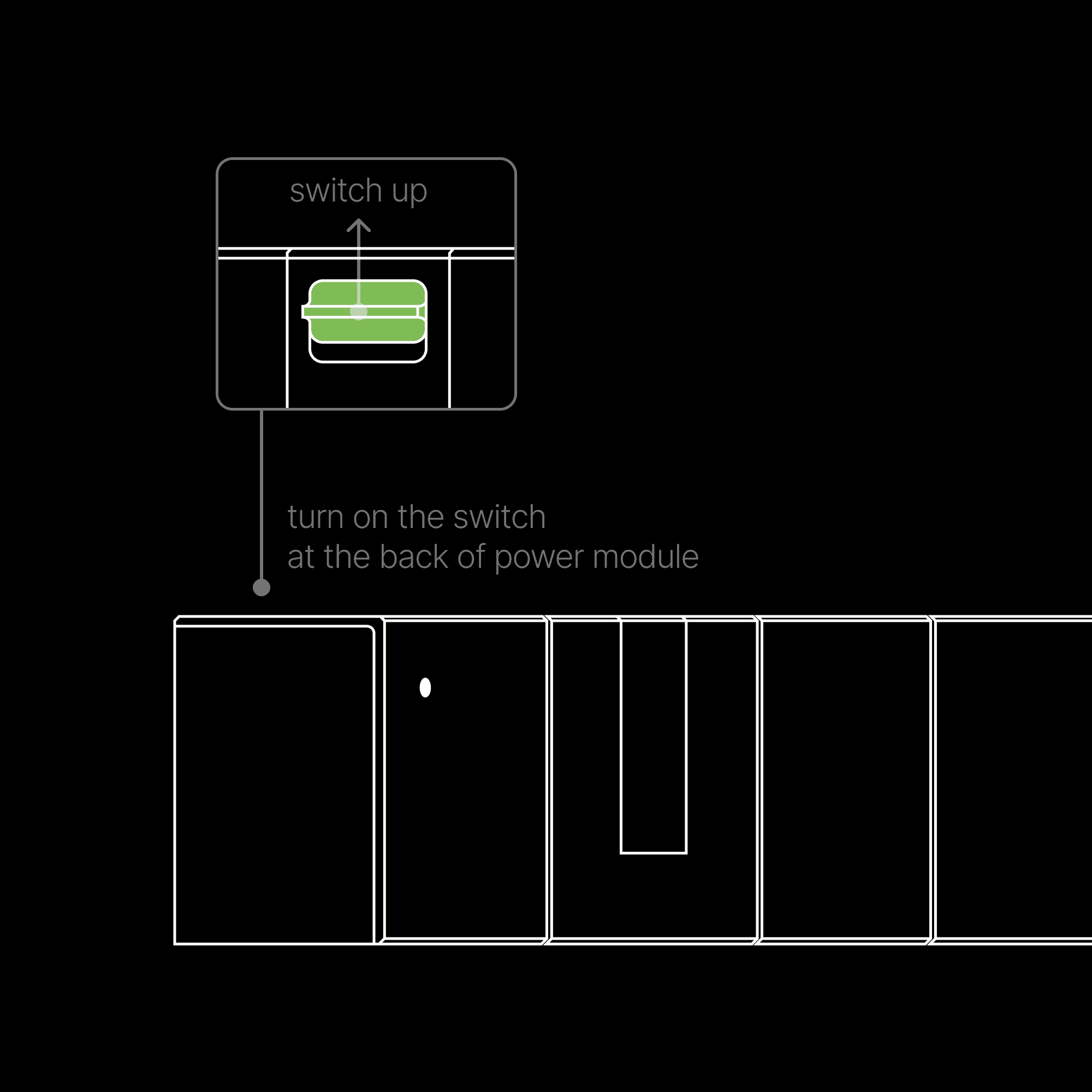
Once again, ensure your assembly is complete and all cables and devices are connected securely. Connect the array and your wall socket with the power cable. Turn the switch on the power module to the up position to power on the system. Check that the power indicator LED is on, and you're good to go.
tap into flow.
© 2025 Flow Tangible Limited.
All Rights Reserved.